1. Upload your image
Start with a JPG, PNG, or WebP image. Clear subjects with good contrast usually produce the cleanest cutout.
AI background remover
Remove backgrounds from product photos, portraits, logos, and web images. Preview the cutout, refine edges with a brush, then download transparent PNG, white JPG, or WebP.


Upload Image
Supports JPG, PNG, and WebP (Max 15MB per image)
or drag and drop files here
Choose image type
General mode works well for everyday photos with a clear subject.
Upload images to see the magic happen.
Start with a JPG, PNG, or WebP image. Clear subjects with good contrast usually produce the cleanest cutout.
Run automatic background removal, then use the erase and restore brushes when small edge details need manual cleanup.
Export transparent PNG, white-background JPG, custom-color output, WebP, or a ZIP batch for multiple images.
Designed for product photos, portraits, logos, and everyday web images where clean edges matter.
Upload, process, preview, refine, and download without opening heavy design software.
Erase leftover background or restore subject details with a simple brush editor.
Use transparent PNG for design work, or switch to white and color backgrounds for stores and ads.
Process multiple images and download them together as a ZIP file.
Compress, resize, or convert the finished image for websites, product listings, and documents.
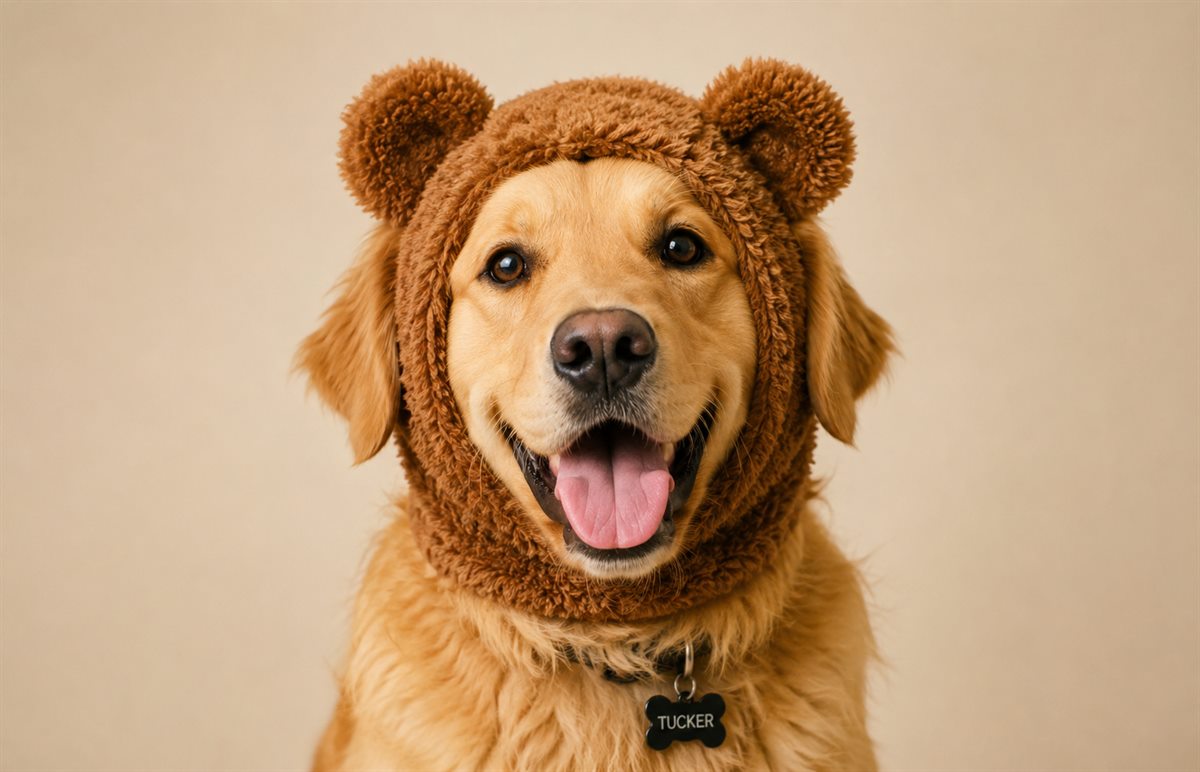
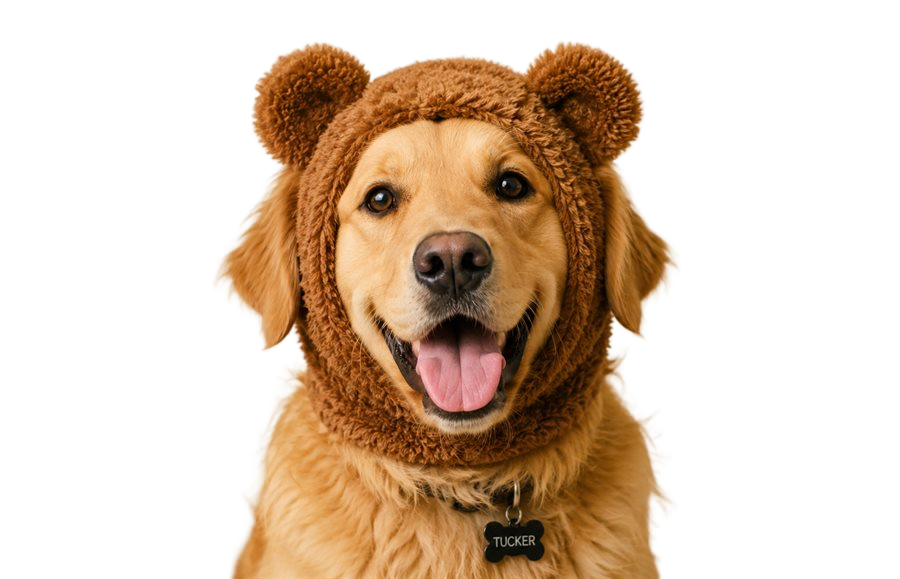
Automatic AI removal gets you most of the way there. When a product edge, hair detail, logo corner, or shadow needs a small correction, open Refine edges and adjust only that area.
This keeps the tool simple for quick jobs while still giving you control when the first result is not quite ready.
Use transparent PNG when the image will sit on a design, presentation, or web page. Choose white JPG for product listings, marketplaces, and simple sharing. Choose WebP when page speed and smaller files matter.

The tool aims to keep the image useful for common web and sharing tasks. Always check the saved result when quality is critical.
Clear images with enough resolution usually produce better results than tiny, blurry, or heavily compressed files.
Yes. After automatic background removal, use the Refine edges editor to erase leftover background or restore parts of the subject.
Yes. Export transparent PNG for overlays, white-background JPG for product listings, or WebP when page speed and file size matter.
Yes. Add multiple images to the queue, process them, then download results together as a ZIP file.