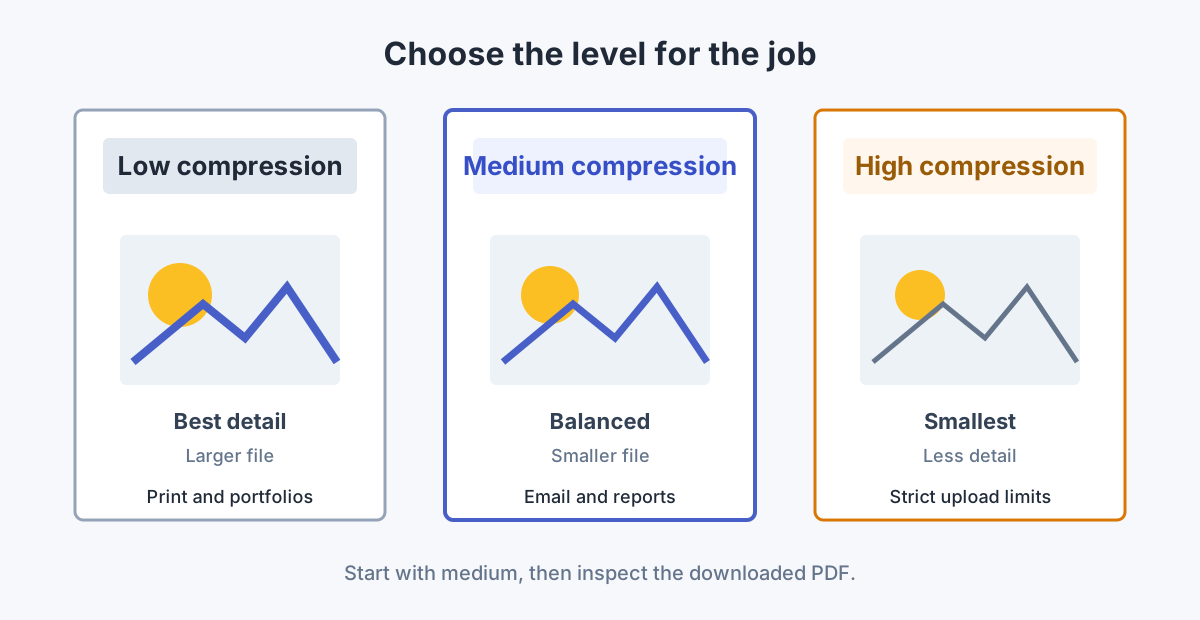
Compression labels can be confusing because they describe the amount of compression, not the amount of quality. A "high compression" result is usually smaller and more aggressive; a "high quality" result is usually larger and gentler.
Try the settings on your PDF
Open the Compress PDF tool, create a result, and compare its size and readability with the original.
Compress PDFLow, Medium, and High Compression Compared
| Setting | Likely result | Best for | Main risk |
|---|---|---|---|
| Low compression | Larger file, more detail retained | Printing, portfolios, diagrams, photo-heavy reports | The file may still exceed an email or portal limit |
| Medium compression | Balanced size and quality | Everyday email, forms, reports, screen reading | Very fine image detail may be reduced |
| High compression | Smallest file, strongest reduction | Strict upload limits and screen-only copies | Blurry scans, blocky photos, weak thin lines |
What Compression Actually Changes
A PDF can contain text, vector graphics, fonts, photographs, scans, thumbnails, attachments, and metadata. A compressor may:
- Downsample large images to fewer pixels.
- Re-encode photographs at a lower image quality.
- Remove duplicate or unused data.
- Subset or optimize embedded fonts.
- Clean internal structures without changing visible content.
Text and vector shapes often remain sharp because they are not pixel images. Scanned pages are more vulnerable because their letters are part of an image. Read the scanned PDF guide before using an aggressive setting on forms or receipts.
Choose a Level by Use Case
Contracts, applications, and ordinary reports
Start with medium compression. Check signatures, dates, fine table borders, and small legal text before sharing.
Photo portfolios and print-ready files
Use low compression or keep the original. A small email attachment is not useful if gradients band, photographs lose texture, or print output looks soft.
Website downloads and screen-only reading
Medium compression is usually sensible. High compression may work if images are secondary and the document is checked on both desktop and mobile screens.
Hard limits such as 1 MB
Try medium first, then high if needed. Removing unnecessary pages or oversized images may work better than repeatedly compressing the whole file. Use the dedicated guide to reduce a PDF to under 1 MB.
Archive or master copy
Do not replace the master with a highly compressed copy. Keep the original and make a smaller distribution version.
A Simple Decision Process
- Name the constraint. Is the problem email, a portal limit, slow download, storage, or printing?
- Make a medium result. Record the original and compressed file sizes.
- Check the most demanding page. Use a page with small text, a photograph, a chart, or a signature.
- Move one level. If quality is poor, use lower compression. If the file is still too large, use higher compression.
- Stop when the requirement is met. Extra reduction has no benefit if it only weakens the document.
Signs Compression Is Too Aggressive
- Small text looks fuzzy at normal reading zoom.
- Photographs show square blocks, halos, or smeared detail.
- Thin chart lines or table borders disappear.
- Colored text or stamps become hard to distinguish.
- Barcodes, QR codes, or small serial numbers no longer scan.
- The file is smaller, but printing produces visibly soft pages.
Compression Percentage Is Not Quality Percentage
A 70% size reduction does not mean the document lost 70% of its visual quality. File size and perceived quality do not move in a straight line. Removing duplicated data can save space with no visible change, while a small extra reduction can seriously affect a detailed scan.
Likewise, a slider marked "80% quality" is not directly comparable across tools. Treat labels as controls for making test versions, not as universal measurements.
FAQ
Which PDF compression level should I use for email?
Start with medium compression. Move to high only if the attachment still exceeds the mail service's limit and the result remains readable.
Does high compression reduce text quality?
Digital text often stays sharp, but scanned text is part of an image and may become blurry. Always check the actual file.
Can low compression still make a useful difference?
Yes. Files with oversized images, duplicate data, or inefficient internal structures may shrink without a dramatic visible change.
Why is my compressed PDF almost the same size?
It may already be optimized, contain little image data, or contain elements the tool cannot reduce safely. Removing pages or changing source images may help more.
Should I compress before or after editing?
Finish page order and content edits first, then compress the final distribution copy. Keep an uncompressed master.