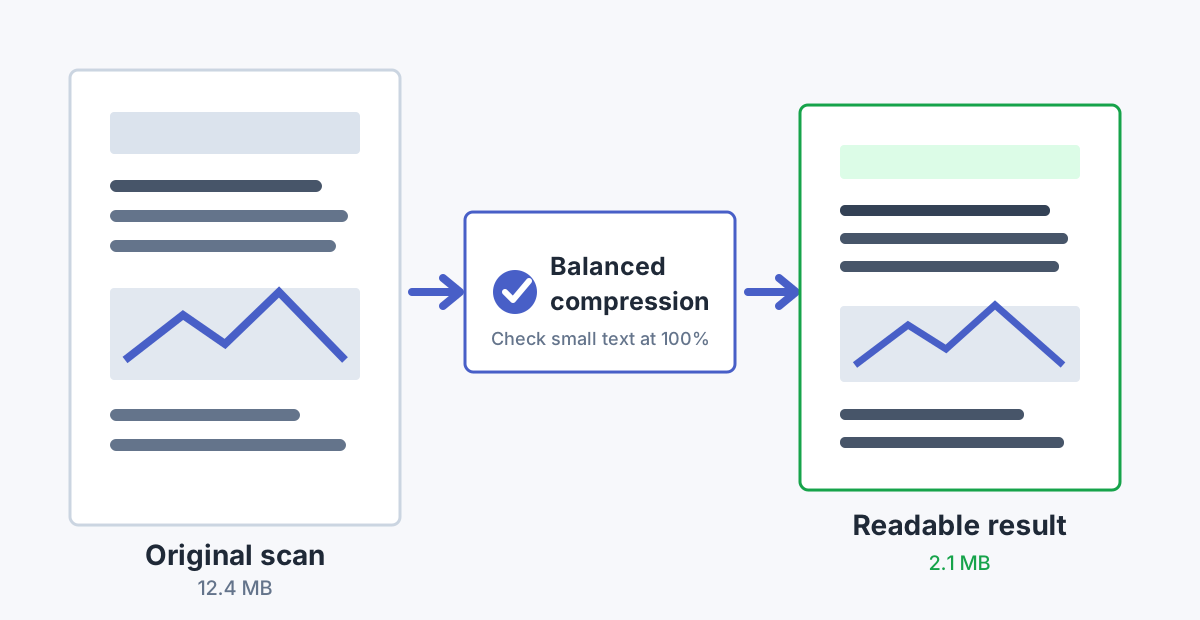
A scanned PDF behaves differently from a PDF exported from Word or a spreadsheet. In a scan, each page is usually a large image. That makes the file easy to enlarge by accident and easy to damage with aggressive compression.
Compress your scanned PDF
Use the Compress PDF tool to create a smaller copy. Keep the original until you have reviewed every important page.
Compress PDFWhy Scanned PDFs Become So Large
File size grows when a scanner captures more visual information than the document needs. Common causes include:
- Scanning every page in full color when the document is mostly black text.
- Using 600 dpi for a document that will only be read on a screen.
- Keeping empty margins, shadows, paper texture, or scanner-bed noise.
- Saving photographs and illustrations with very light compression.
- Combining many individual scans into one long document.
Dust, shadows, and paper texture make blank-looking areas harder to compress. Cropping and cleaning a scan can help without weakening the letters.
A Safer Compression Workflow
- Keep the source scan. Work from a copy, especially for contracts, certificates, medical records, or signed forms.
- Fix the page first. Crop empty margins, straighten tilted pages, and rotate sideways pages.
- Choose the right color mode. Keep color when stamps, highlights, photographs, or annotations matter. Grayscale may suit ordinary text.
- Start in the middle. A balanced setting is a better first test than maximum compression.
- Check the hardest page. Inspect small type, faint pencil marks, signatures, barcodes, and thin table lines.
- Adjust from the original. If the result is blurry, discard it and try again with a gentler setting.
What Resolution Should You Keep?
There is no universal number because type size, scan quality, color, and final use all matter. These are starting points, not guarantees.
| Typical use | Starting point | What to check |
|---|---|---|
| Screen reading and email | About 150-200 dpi | Body text remains comfortable at normal zoom. |
| Forms, invoices, and OCR | About 200-300 dpi | Small print, boxes, and characters stay distinct. |
| Detailed print or archive | 300 dpi or more | Fine lines and photographs meet the required output. |
Color, Grayscale, or Black and White?
Color
Keep color when it carries information: approval stamps, highlighted answers, photographs, diagrams, or colored signatures. Color files are usually larger.
Grayscale
Grayscale is often a good compromise for black text with photographs, pencil marks, or uneven paper. It can preserve more detail than strict black and white.
Black and white
One-bit black and white can make clean typed pages very small, but it may erase faint handwriting, shaded cells, or smooth letter edges.
Does OCR Prevent Blurry Text?
OCR adds a searchable text layer, but the visible page may still be a scanned image. OCR makes a document searchable; it does not repair a low-quality image. Verify names, numbers, and unusual fonts.
What Does "Without Losing Quality" Mean?
If compression downsamples images or uses lossy encoding, some data is removed. A better goal is no meaningful loss for the intended use. A smaller document can look unchanged during normal reading even when close inspection finds differences.
For a hard limit, follow the guide on reducing a PDF to under 1 MB. For general quality choices, read how to compress a PDF without losing quality.
Final Readability Checklist
- Open the downloaded PDF, not only the preview.
- View small text and footnotes at 100% zoom.
- Check signatures, stamps, seals, handwriting, and thin lines.
- Scan barcodes or QR codes if the recipient must use them.
- Print one representative page if the document will be printed.
- Confirm that every page is present, upright, and in order.
FAQ
Why does my scanned PDF look blurry after compression?
The compressor may have reduced image resolution or used stronger encoding. Start again from the original and choose a gentler setting.
Should I scan text documents in grayscale?
Often, yes, when color does not carry information. Keep color for highlights, photographs, stamps, or annotations that matter.
Can I compress the same PDF several times?
Repeated lossy compression can steadily soften text and images. Make each new test from the original.
Will OCR make the file smaller?
Not necessarily. OCR adds searchable text, while the page image may remain.
What should I check on signed documents?
Check signatures, initials, dates, seals, and fine pen strokes. Preserve the original signed file because processing may affect digital-signature validity.