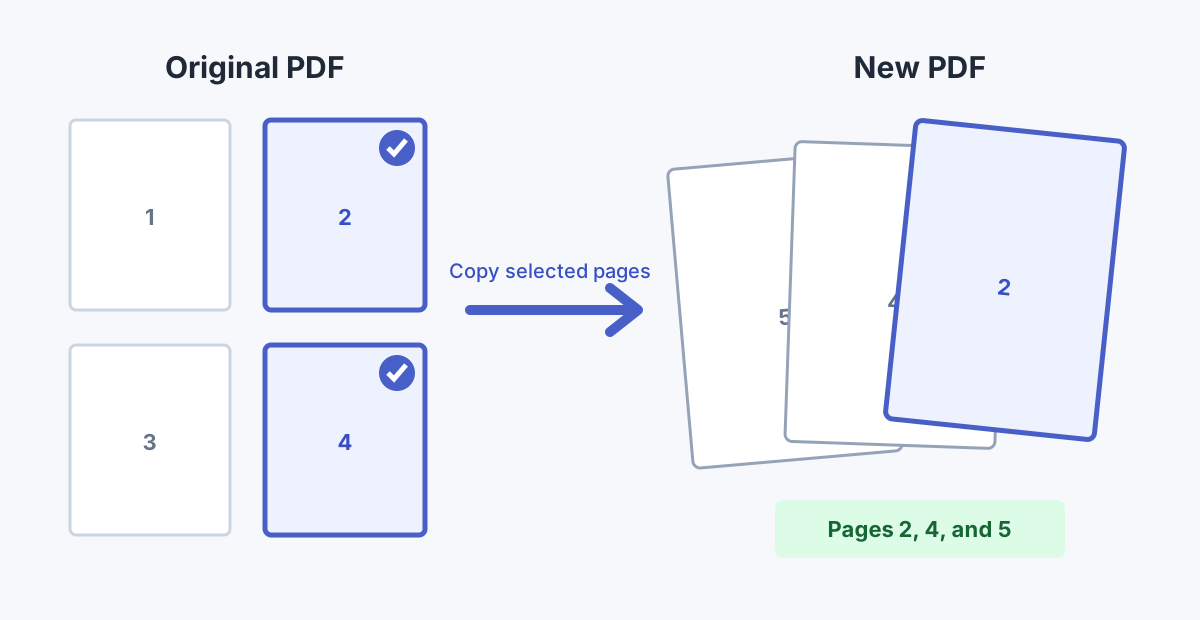
Extracting pages is useful when you need one chapter from a manual, selected invoices from a statement, or a few pages from an application packet. It also avoids sharing pages the recipient does not need.
Extract selected PDF pages
The Extract PDF Pages tool runs common page operations in your browser. Preview the document, select pages visually or enter a range, and download a new PDF.
Extract PDF PagesExtract, Split, or Delete: What Is the Difference?
| Action | Result | Use it when |
|---|---|---|
| Extract pages | One new PDF with selected pages | You need pages 2, 5, and 8-10 in one file |
| Split PDF | Several smaller PDFs or one file per page | You need separate chapters, invoices, or individual pages |
| Delete pages | One new PDF with unwanted pages removed | Most of the original should remain |
Choose the action that matches the final file you want. If you need every page as a separate document, use Split PDF. If you only need to remove a cover or blank page, use Delete PDF Pages.
How to Extract PDF Pages Step by Step
- Open a copy of the original. Keep the source document until the extracted file has been reviewed.
- Upload the PDF. Wait for all page thumbnails to load before selecting anything.
- Select pages. Click thumbnails or enter a range such as
1,3-5,9. - Check the order. Ranges are normally placed in ascending page order unless the tool says otherwise.
- Download the result. Give it a clear name that describes the included pages.
- Open and inspect it. Confirm page count, page size, orientation, links, and readable content.
Why Extraction Usually Preserves Visual Quality
A proper extraction workflow copies existing PDF pages into a new PDF. It does not need to render every page as a bitmap. Text can remain text, vector graphics can remain vectors, and embedded page images do not need another JPEG compression pass.
The FlymeTools extraction page uses a PDF library to copy selected pages into a new document in the browser. That avoids an unnecessary screenshot step and leaves your original file unchanged.
What May Not Transfer Perfectly?
Visible page content is only part of a PDF. Some features belong to the whole document or depend on page references. Review these after extraction:
- Bookmarks and table-of-contents links: destinations may point to pages that are no longer present.
- Interactive forms: fields, calculations, or shared field names may behave differently.
- Digital signatures: changing the document can invalidate an existing cryptographic signature.
- Attachments and portfolios: embedded files may not be included in a page-only result.
- Comments and annotations: confirm that highlights, notes, stamps, and drawing marks remain.
- Encryption and permissions: a protected PDF may require a password or may restrict changes.
Quality Checks After Extraction
- Compare a text-heavy page at 100% zoom with the original.
- Zoom in on diagrams, signatures, stamps, and fine lines.
- Check that portrait and landscape pages keep the right dimensions.
- Test any links or form fields the recipient must use.
- Confirm the first and last selected pages are correct.
- Check that private or irrelevant pages are not included.
Useful Page-Range Examples
| Range | Pages selected | Example use |
|---|---|---|
3 | Page 3 | One signed page |
2-6 | Pages 2 through 6 | One chapter or section |
1,4,7 | Pages 1, 4, and 7 | Selected invoices or forms |
1-3,8-10 | Two page groups | Summary plus appendix |
When Extracting Pages Can Also Reduce File Size
An extracted PDF is often smaller because it contains fewer pages. That is not the same as image compression: the retained pages can keep their original visual content while unused pages are left out. If the selected pages are still too large, compress the extracted copy once, after checking that the correct pages are present.
FAQ
Does extracting PDF pages lower resolution?
Page copying does not inherently require lowering image resolution. Quality loss is more likely when pages are rendered to images and rebuilt.
Can I extract non-consecutive pages?
Yes. Use a list such as 1,3,6-8 or select the corresponding thumbnails.
Will the original PDF change?
No. The tool creates a new result file. Keep the original until you have checked the download.
Can I extract pages from a password-protected PDF?
You may need the correct password, and document permissions can restrict extraction. Do not try to bypass restrictions on files you are not authorized to change.
Will digital signatures stay valid?
Not necessarily. Extracting pages creates a different document and can invalidate signatures that protect the original file.