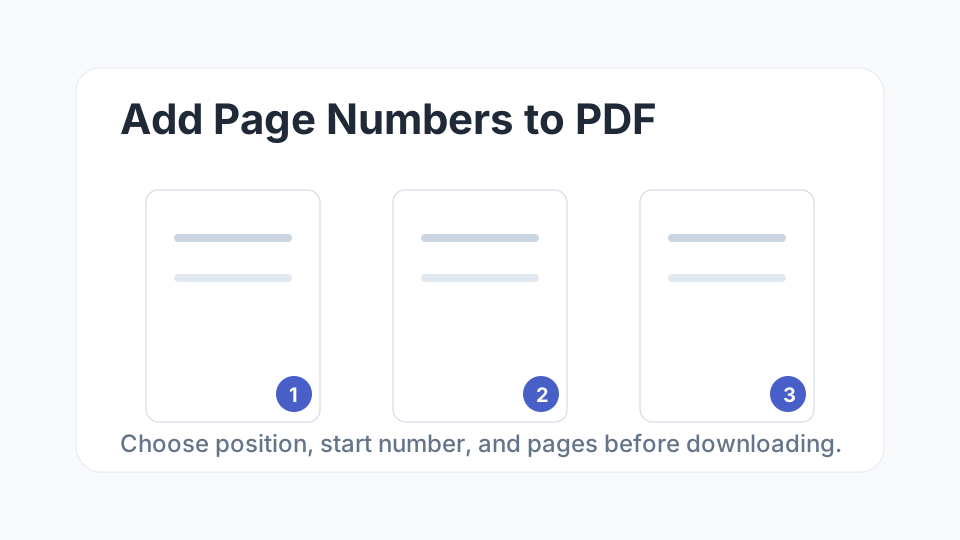
Adding page numbers to a PDF helps readers follow a document and refer to a specific page during review. It is especially useful for contracts, reports, study notes, invoices, applications, and multi-page scans.
Use the free page numbering tool
Open Add Page Numbers to PDF, upload your file, choose position and starting number, then download a new numbered PDF.
Add Page NumbersWhere Should Page Numbers Go?
Bottom center is the safest position for most documents. Bottom right is common for reports and forms. Top right can work for drafts, but avoid placing numbers where they overlap headers, signatures, stamps, or margins.
Should You Skip the Cover Page?
Many documents start numbering after the cover page. If the first page is a title page, cover letter, or table of contents, use the skip-first-page option and start numbering from the next page.
Before You Download
- Check that every intended page is included.
- Confirm the starting number is correct.
- Make sure numbers do not cover important text.
- Open the downloaded PDF once before sending it.
FAQ
Can I add page numbers without installing software?
Yes. Use the online tool in your browser and download a new PDF.
Will my original PDF be changed?
No. The tool creates a new numbered copy while your original file remains unchanged.
Can I start numbering at 0 or another number?
Yes. Choose a starting number that matches your document, appendix, or printed set.